Table of Contents
- Installation
- Database: using MySQL or PostgreSQL instead of SQLite (optional)
- Automatic startup
- TLS setup and Let's Encrypt certificate automation
- Brute-force protection
Installation
Generic cross-platform installation
To install M/Monit:
- First, check that M/Monit is supported on your platform
- Download the latest release from https://mmonit.com/download/
- Unpack the tar.gz file in a directory of your choice. /opt and /usr/local are good choices. For example:
tar -xzf mmonit-4.0.0-linux-x64.tar.gz
- Go to the unpacked mmonit-<version> directory
- Before you start M/Monit for the first time, set new passwords for the default users (optional):
    ./bin/mmonit-admin password admin
    Please enter the new password (maximum 128 characters): ******
    Enter the password again for confirmation: ******
    Password successfully updated!

    ./bin/mmonit-admin password monit
    Please enter the new password (maximum 128 characters): ******
    Enter the password again for confirmation: ******
    Password successfully updated!
- Start M/Monit:
./bin/mmonit
- Point your browser to the host where M/Monit is installed (or "localhost" if it runs on the same machine), for instance http://localhost:8080/, and log in as the user "admin" with the default password "swordfish", or with the password you set with mmonit-admin above.
Once started, M/Monit daemonizes itself and runs in the background. To stop it, use ./bin/mmonit stop. To see all options, use ./bin/mmonit -h.
You can run M/Monit as any user, including root. A dedicated account is not required.
- M/Monit requires Monit as an agent. See the M/Monit Manual (page 16) for how to set up Monit to report to M/Monit.
macOS installer
On macOS, M/Monit is installed with an installer package. The installer copies M/Monit to /usr/local/mmonit, owned by the user who runs the installer. Only that user can run mmonit, because the file permissions let only that user open the SQLite database in /usr/local/mmonit/db/mmonit.db. To run mmonit as another user, change the owner of /usr/local/mmonit from the command line:
sudo chown -R user /usr/local/mmonit
This changes the owner of the mmonit directory and all its files to user. Replace user with the user that should run M/Monit.
Database: using MySQL or PostgreSQL instead of SQLite (optional)
M/Monit comes with SQLite, bundled and configured, so no extra setup is required. If you plan to monitor more than, say, 40-50 hosts, you may want to use MySQL or PostgreSQL instead, as they are faster and scale much better. If in doubt, start with SQLite.
If you want to switch to MySQL or PostgreSQL later, the migrate_db.sh script in the mmonit/db directory moves your SQLite data to the new database.
Follow these steps to configure M/Monit to use MySQL or PostgreSQL:
- Create the M/Monit database
The database schemas are in mmonit/db/. Use one of the following recipes:
MySQL:
 1) Create the mmonit database: mysqladmin create mmonit -u root -p
 2) Create the mmonit user and grant it access to the mmonit database:
     CREATE USER mmonit@localhost IDENTIFIED BY '<password>';
     GRANT ALL ON mmonit.* to mmonit@localhost;
     FLUSH PRIVILEGES;
 3) Create the schema: mysql -u mmonit mmonit -p < mmonit-schema.mysql
PostgreSQL:
 1) Create the mmonit database user: createuser -U postgres -P mmonit
 2) Create the mmonit database: createdb -U postgres -E utf8 -O mmonit mmonit
 3) Create the schema: psql -U mmonit mmonit < mmonit-schema.postgresql
- Configure M/Monit
Edit the M/Monit configuration file conf/server.xml and replace the SQLite <Realm> element with one of the following:
For MySQL:
 <Realm url="mysql://mmonit:mmonit@127.0.0.1:3306/mmonit"
       minConnections="5"
       maxConnections="30"
       reapConnections="300" />
For PostgreSQL:
 <Realm url="postgresql://mmonit:mmonit@127.0.0.1:5432/mmonit"
       minConnections="5"
       maxConnections="30"
       reapConnections="300" />
Adjust the username, password, host and port number in the connection URL as required.
The url attribute of the <Realm> element specifies the database connection as a standard URL, in this format: database://[user:password@][host][:port]/database[?propertyName1][=propertyValue1][&propertyName2][=propertyValue2]... The available properties depend on the database server. If the port number is omitted, the default port of the database server is used.
Restart M/Monit to connect to the new database.
Automatic startup
Using Monit
You can register M/Monit as a service in the Monit configuration file (/etc/monitrc):
 check process mmonit with pidfile /usr/local/mmonit/logs/mmonit.pid
   start program = "/usr/local/mmonit/bin/mmonit"
   stop program = "/usr/local/mmonit/bin/mmonit stop"
Then reload the Monit configuration:
monit reload
Using systemd
Save this systemd unit file as /etc/systemd/system/mmonit.service:
 [Unit]
 Description = Easy, proactive monitoring of Unix systems, network and cloud services
 After = network.target
 Documentation= https://mmonit.com/documentation/

 [Service]
 Type=simple
 KillMode=process
 ExecStart = /opt/mmonit/bin/mmonit -i
 ExecStop = /opt/mmonit/bin/mmonit stop
 PIDFile = /opt/mmonit/logs/mmonit.pid
 Restart = on-abnormal

 [Install]
 WantedBy = multi-user.target
Reload the systemd configuration, enable M/Monit at boot and start it:
 systemctl daemon-reload
 systemctl enable mmonit
 systemctl start mmonit
Using Upstart
Configuration for Upstart (older versions of Ubuntu and Debian):
Save this script as /etc/init/mmonit.conf:
 # This is an upstart script to keep mmonit running.
 # Put this script here:
 #
 #   /etc/init/mmonit.conf
 #
 # and reload upstart configuration:
 #
 #   initctl reload-configuration
 #
 # You can manually start and stop mmonit like this:
 #
 # start mmonit
 # stop mmonit
 #

 description "M/Monit system monitoring"

 limit core unlimited unlimited

 start on runlevel [2345]
 stop on runlevel [!2345]

 expect daemon
 respawn

 exec /usr/local/mmonit/bin/mmonit

 pre-stop exec /usr/local/mmonit/bin/mmonit stop
Reload the Upstart configuration and start M/Monit:
 initctl reload-configuration
 start mmonit
Using the rc framework on FreeBSD
On FreeBSD you can use the rc framework to start M/Monit. Install M/Monit and prepare the system as follows:
- Link the installed version to a common path, so that an upgrade only changes the link and not the rc script:
ln -s /usr/local/mmonit-4.3.3 /usr/local/mmonit
ls -l /usr/local/mmonit
lrwxr-xr-x  1 root wheel 23 Jan  6 09:26 /usr/local/mmonit -> /usr/local/mmonit-4.3.3
Or set the path to your M/Monit directory with sysrc mmonit_path="<path to M/Monit>"
- Create an unprivileged user for M/Monit, with the same UID as the owner of the files in the archive:
pw useradd -n mmonit -u 1002 -d /nonexistent -s /usr/sbin/nologin
- Copy the following rc script to
/usr/local/etc/rc.d/mmonit:
#!/bin/sh

# PROVIDE: mmonit
# REQUIRE: LOGIN
# KEYWORD: shutdown

. /etc/rc.subr

name="mmonit"
desc="M/Monit monitoring aggregation server for monit"
rcvar="mmonit_enable"

load_rc_config $name
: ${mmonit_enable:=no}
: ${mmonit_path=/usr/local/mmonit}

pidfile=${mmonit_path}/logs/${name}.pid

mmonit_status(){
  if [ -f $pidfile ]; then
    echo mmonit is running on pid: $(cat $pidfile)
  else
    echo mmonit is not running.
  fi
}

status_cmd=${name}_status
start_cmd="su -m mmonit -c '${mmonit_path}/bin/${name} start'"
stop_cmd="su -m mmonit -c '${mmonit_path}/bin/${name} stop'"

run_rc_command "$1"
- Make the rc script executable:
chmod 755 /usr/local/etc/rc.d/mmonit - Enable startup at boot with
service mmonit enable
The rc script supports these commands: service mmonit start|stop|enable|onestart|onestop|describe|status
TLS setup and Let's Encrypt certificate automation
M/Monit can use a free TLS certificate from a certificate authority such as Let's Encrypt. Let's Encrypt uses the ACME protocol to request and renew certificates automatically. To get a certificate, you prove that you control the domain, either through DNS or through the document root of a web server.
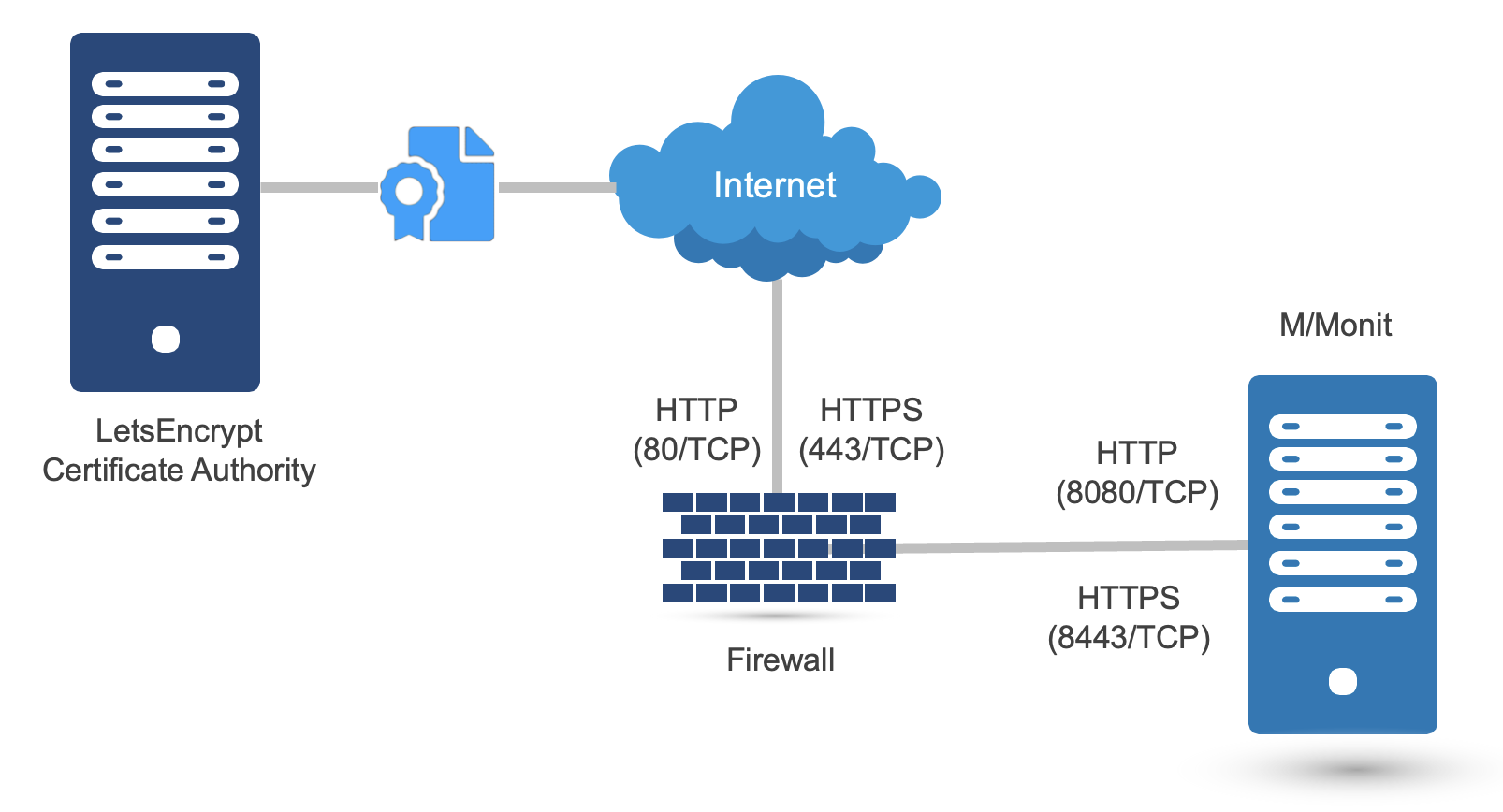
This section describes how to use the certbot utility to request and renew certificates automatically when M/Monit is reachable from the internet. M/Monit can also run on an isolated host and on different ports, if you set up the firewall and port forwarding to match.
Example environment
- M/Monit runs as the unprivileged user mmonit on ports 8080 and 8443, and is installed in /home/mmonit/current
- Monit, running as root, controls the M/Monit process with the following configuration. You can also use another service manager, such as systemd:
check process mmonit with pidfile /home/mmonit/current/logs/mmonit.pid
  start program = "/home/mmonit/current/bin/mmonit -d" as uid "mmonit" and gid "mmonit"
  stop program = "/home/mmonit/current/bin/mmonit stop" as uid "mmonit" and gid "mmonit"
- Plain HTTP (port 80) is open to the internet only while a certificate is requested or renewed (optional).
- The mmonit user can restart M/Monit and open port 8080 in the local firewall through sudo, with this sudo configuration:
mmonit  ALL=(root) NOPASSWD: /usr/local/bin/monit restart mmonit
mmonit  ALL=(root) NOPASSWD: /usr/sbin/ufw insert 1 allow from any to any port 8080
mmonit  ALL=(root) NOPASSWD: /usr/sbin/ufw delete allow from any to any port 8080
Initial setup
- Install certbot on the machine where M/Monit runs. Most platforms, such as Linux and FreeBSD, have a package for it.
- M/Monit needs a plain HTTP connector in its configuration (conf/server.xml). Set up port forwarding from the public port 80/tcp to the internal port 8080/tcp, so M/Monit is reachable at http://mmonit.mydomain.com. Do not add a secure connector for port 8443 yet:
<Connector address="*" port="8080" processors="10"/>
- Start M/Monit
- Request the certificate by running certbot as the same user as M/Monit (e.g. mmonit):
 $ certbot certonly \
    -n \
    --http-01-address "M/Monit's public IP address" \
    -d "M/Monit's public host name (e.g. mmonit.mydomain.com)" \
    --work-dir /home/mmonit/letsencrypt \
    --logs-dir /home/mmonit/letsencrypt \
    --config-dir /home/mmonit/letsencrypt \
    --agree-tos \
    --email "your email address" \
    --pre-hook "sudo ufw insert 1 allow from any to any port 8080" \
    --post-hook "sudo ufw delete allow from any to any port 8080; sudo monit restart mmonit" \
    --webroot-path /home/mmonit/current/docroot/ \
    --webroot
Notes:
- If you control M/Monit in another way (e.g. with systemd), replace the restart command in the example with the equivalent command (e.g. systemctl restart mmonit).
- Opening port 8080 in the local firewall in the pre-hook and post-hook is optional. Replace the ufw commands with the equivalent for your platform.
- Add the TLS connector and the certificate to the M/Monit configuration (conf/server.xml):
<Connector address="*" port="8080" processors="10"/>
<Connector address="*" port="8443" processors="10" secure="true"/>
...
<Engine name="mmonit" defaultHost="mmonit.mydomain.com" fileCache="10 MB">
  ...
  <Host name="mmonit.mydomain.com" appBase="."
        certificate="/home/mmonit/letsencrypt/live/mmonit.mydomain.com/fullchain.pem"
        certificateKey="/home/mmonit/letsencrypt/live/mmonit.mydomain.com/privkey.pem">
    ...
  </Host>
</Engine>
- Restart M/Monit
Certificate renewal
Set up cron to check once a week whether the certificate needs to be renewed. By default, certbot renews a certificate 30 days before it expires. Crontab entry for the mmonit user:
0 1 * * 0 certbot renew --cert-name mmonit.mydomain.com --work-dir /home/mmonit/letsencrypt --logs-dir /home/mmonit/letsencrypt --config-dir /home/mmonit/letsencrypt
Note: when certbot renews the certificate, it runs the same hooks as for the initial request. They open port 8080/tcp so that Let's Encrypt can verify the domain, close it again when the renewal is done, and restart M/Monit.
Brute-force protection
M/Monit does not limit the number of login attempts from a client. To block repeated login failures, use fail2ban, a rate limit in a proxy in front of M/Monit, or both. Which one to use depends on how M/Monit is accessed:
- Direct access: M/Monit logs the address of the client. Use fail2ban with the M/Monit log files, as described below.
- Behind a reverse proxy: M/Monit logs the address of the proxy, not of the client. Do not use fail2ban with the M/Monit log files in this case. It would ban your own proxy and lock out all users. Use a rate limit in the proxy instead. If you also want fail2ban, point it at the access log of the proxy, which records the client address, and set the ports in the jail to those of the proxy.
If M/Monit is behind a proxy, make sure its port cannot be reached directly from outside, or clients can bypass the proxy and its rate limit. Bind the Connector in conf/server.xml to a local network address, such as address="192.168.1.10", and point the proxy at that address. Monit agents on the local network can then connect to M/Monit directly, and agents outside it through the proxy. If all agents go through a proxy on the same host, bind to 127.0.0.1 instead. Binding to a local address only helps if nothing forwards outside traffic to it, such as a port forward on the router. On a cloud server the public address usually maps to the private one, so block the port in the firewall or security group as well.
Using fail2ban
- Enable the access logger in the M/Monit conf/server.xml file. fail2ban reads it for failed Monit agent logins, and it is disabled by default:
<AccessLogger directory="logs" fileName="access.log" rotate="month" />
- Restart M/Monit
- Install fail2ban, for example on Debian and Ubuntu:
apt install fail2ban
- Create the file /etc/fail2ban/jail.d/mmonit.conf with the jail for M/Monit. Adjust the paths and ports to your installation:
[mmonit]
enabled  = true
port     = 8080,8443
logpath  = /usr/local/mmonit/logs/error.log
           /usr/local/mmonit/logs/access.log
maxretry = 5
findtime = 10m
bantime  = 1h
# Add your own address or network, so you cannot lock yourself out
ignoreip = 127.0.0.1/8 ::1
- Create the file /etc/fail2ban/filter.d/mmonit.conf with the filter for M/Monit:
# Fail2Ban configuration file for M/Monit (https://mmonit.com)
# Author: support@mmonit.com

[Definition]

# Block:
#   1. failed logins to the M/Monit web interface (error.log)
#   2. failed two-factor authentication (error.log, M/Monit 4.4.0 and later)
#   3. failed Monit agent authentication, HTTP 401 (access.log)
#
# Keep the ^ anchors. Without them, a pattern can also match text that a
# client puts in a URL or a header, and the client can choose which address
# is banned.

failregex = ^Unauthorized, authentication failed for \[<HOST>\]$
            ^Two-Factor Authentication failed for \[<HOST>\]$
            ^<HOST> - \S+\s+"[A-Z]+ /collector[^"]*" 401\b

ignoreregex =
- Start fail2ban:
systemctl enable fail2ban
systemctl start fail2ban
- Check the status:
# fail2ban-client status mmonit
Status for the jail: mmonit
|- Filter
|  |- Currently failed: 0
|  |- Total failed: 0
|  `- File list: /usr/local/mmonit/logs/error.log /usr/local/mmonit/logs/access.log
`- Actions
   |- Currently banned: 0
   |- Total banned: 0
   `- Banned IP list:
Note: Before version 4.4.0, M/Monit answers a failed login to the web interface with HTTP 200, so only the error log shows the failure. This is why the jail reads both files: the error log for the web interface, and the access log for Monit agents. M/Monit 4.4.0 and later answer a failed login with HTTP 401, so the access log shows it too. The /collector pattern does not match it, so it is not counted twice.
Note: M/Monit 4.4.0 and later also write a failed Monit agent login to the error log, with the same line as a failed login to the web interface, so the first pattern matches it. With these versions, the /collector pattern and the access log are not needed. Remove the pattern from the filter and access.log from the jail, or a failed agent login is counted twice.
Note: Keep enableLookups off on the Connector in conf/server.xml (the default). With lookups on, the access log records host names instead of addresses, and fail2ban would ban whatever address a name resolves to. A client controls its own reverse DNS name.
Note: Since version 4.4.0, M/Monit escapes control characters in its log files, so a client cannot add a line of its own. With the anchored patterns above, only lines written by M/Monit can match.
To test the filter on your own log files before you enable it:
fail2ban-regex /usr/local/mmonit/logs/error.log /etc/fail2ban/filter.d/mmonit.conf
Rate limiting in a proxy
A rate limit on the login URLs stops repeated attempts before they reach M/Monit. The login form posts to /z_security_check, and from M/Monit 4.4.0 the two-factor code posts to /z_security_2fa. M/Monit ignores case in these URLs, and any ;parameter suffix, so the patterns below do the same. They also match when M/Monit is served under a sub-path, such as /mmonit/.
Do not rate limit /collector. Every Monit agent posts to it on each cycle, and a limit there would throttle normal reporting.
nginx: give login requests a key and limit them in the location that proxies M/Monit. Requests with an empty key, which is all other requests, are not limited:
# In the http block
map $uri $mmonit_login {
    "~*/z_security_(check|2fa)(;|$)"  $binary_remote_addr;
    default                           "";
}
limit_req_zone $mmonit_login zone=mmonitlogin:10m rate=1r/m;

server {
    ...
    location / {
        # Allow a short burst, then one login request a minute. The rest get 429
        limit_req zone=mmonitlogin burst=5 nodelay;
        limit_req_status 429;
        proxy_pass http://127.0.0.1:8080;
    }
}
Apache: rate limiting is not part of the Apache core, but the mod_qos module provides it (package libapache2-mod-qos on Debian and Ubuntu):
# Mark login requests, then limit how many a client may make
SetEnvIfNoCase Request_URI "/z_security_(check|2fa)(;|$)" LoginAttempt
QS_ClientEventLimitCount 5 300 LoginAttempt
This allows each client address 5 login attempts in 300 seconds, and denies further requests from it for the rest of that period.
If you prefer not to add a module, use fail2ban with the Apache access log instead, matching the same two URLs.
Monitoring fail2ban with Monit (optional)
You can monitor fail2ban with Monit and show the list of blocked hosts on the M/Monit status page. Monit service configuration, for example in /etc/monitrc:
check process fail2ban with pidfile /var/run/fail2ban/fail2ban.pid
   start program = "/bin/systemctl start fail2ban"
   stop program = "/bin/systemctl stop fail2ban"
   if failed unixsocket /var/run/fail2ban/fail2ban.sock protocol fail2ban then alert
   group fail2ban

check program fail2ban-mmonit with path "/usr/bin/fail2ban-client status mmonit"
   if status != 0 then alert
   depends on fail2ban
   group fail2ban
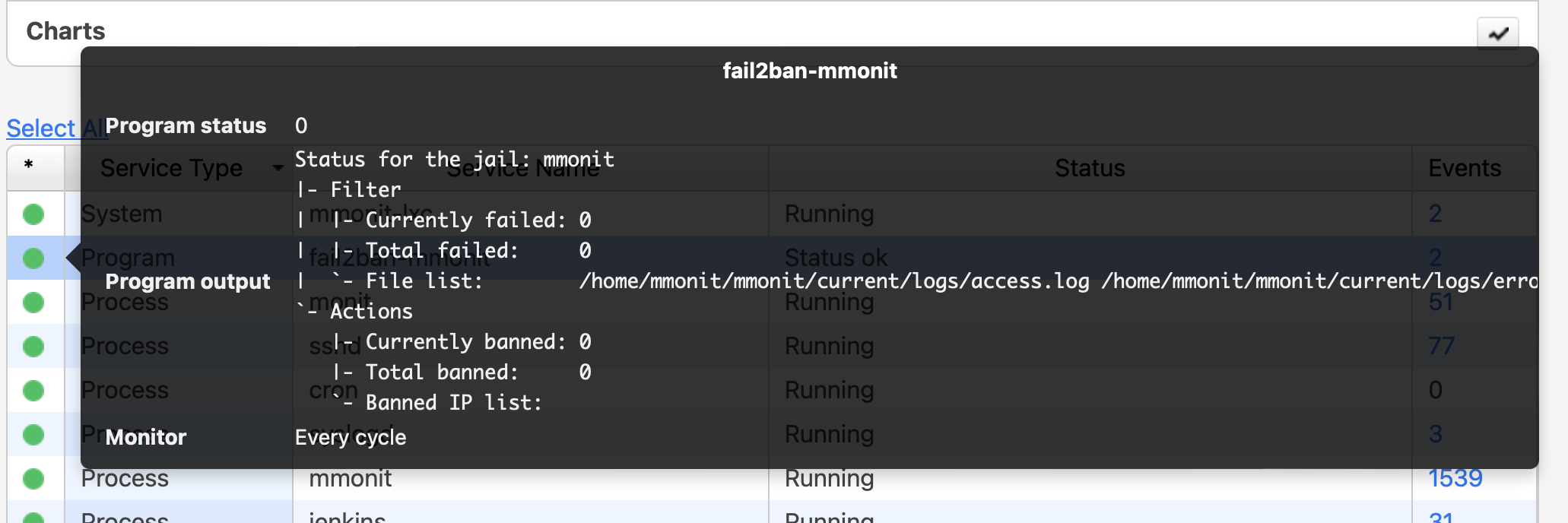
You can then check the status with the Monit CLI or on the M/Monit status page:
# monit -g fail2ban status
M/Monit status page: